


Countryside - 4x4km Rural Nature Environment
Create a detailed realistic countryside landscape environment featuring dense forests, open grasslands, rolling hills, fields, rivers, cliffs, bridges, rural roads, wind turbines, and power lines.
The pack includes both 16 km² and 9 km² Rural Landscape maps, featuring Nanite vegetation, procedural forest and grassland biomes, cliff rock models, and multiple varieties of Birch, Maple, and Poplar trees.
Designed for game developers, hobbyst, lighting artists, environment artists, and cinematic creators, the pack provides large-scale rural landscapes for outdoor level design, open-world games, and cinematic scenes.
-
Nanite models
-
PCG procedural foliage
-
Landscape Grass integration
-
Pivot Painter wind animation
-
Roads, Bridges, Wind Turbine, Powerline
-
16 km² and 9 km² example maps
Overview - Maps
The pack includes a dedicated Overview Map that clearly presents all assets and their variations, allowing users to quickly explore the full content of the environment.
Additionally, the pack features two similar fully prepared environment maps and asset ecosystem: a 9km² map, ideal for smaller projects, fast iteration, and cinematic production, and a massive 16 km² open world map, designed for large-scale games, expansive exploration, and high-end cinematic scenes. Both maps provide a ready-to-use foundation for immediate production.


Map_CountrySide_16km2
Assets

Overview - Asset Properties

Overview - Trees
The pack includes four Central European tree species: Poplar, Birch, Willow, and Maple. Poplar and Birch trees feature multiple size variations, from young saplings to giant mature trees.
All trees enabled Nanite and use masked leaves for detailed foliage. Pivot Painter 2 provides realistic wind animation and natural foliage movement.
Tree assets range from approximately 400,000 to 1,200,000 triangles, making them suitable for games, cinematics, and large-scale environments.

Overview - Wind Effect
All tree and plants wind animations are fully controllable through the centralized MPC_WindTree Material Parameter Collection / MPC_WindPlant, providing global control over wind intensity, direction, and behavior. To access these settings, simply search for “MPC_WindTree”/ ''MPC_WindPlant'' in the Content Browser. This allows you to adjust the wind parameters of all tree and plant assets simultaneously, ensuring fast and consistent environmental control across your entire scene.

All tree and plants wind animations are fully controllable through the centralized MPC_WindTree Material Parameter Collection / MPC_WindPlant, providing global control over wind intensity, direction, and behavior. To access these settings, simply search for “MPC_WindTree”/ ''MPC_WindPlant'' in the Content Browser. This allows you to adjust the wind parameters of all tree and plant assets simultaneously, ensuring fast and consistent environmental control across your entire scene.

By default we have set distance for WPO for all foliage and PCG for performance concern. In order to increase disable distance for WPO, please check foliage tool and PCG both by typing


Landscape layer setup
-
Go to the landscape folder in content browser and select the MI_Cs_Landscape. Drag it to the landscape details panel material input.
-
Go to the Landscape Editor, from paint tab, create landscape layer info for each landscape layer.
-
After these steps landscape material is applied to the landscape.
-
Enable contact shadows from directional light to get correct shadows for better performance

Landscape Grass

Grass Mesh
You can change the grass model by dragging and dropping any Static Mesh into the Grass Mesh slot.
Grass Density
The Grass Density parameter controls how many grass instances are spawned.
Higher density creates a fuller look but reduces performance. For better performance, use lower density values.
Scale X
The Scale X parameter controls the size variation of the grass meshes.
Increasing the value makes the plants larger, while decreasing it makes them smaller. This helps create more natural variation.
Distance Field and Dynamic Shadows
Enabling Distance Field Lighting and Cast Dynamic Shadow improves visual quality but increases performance cost.
For better performance, disable both options and enable Contact Shadows in your Directional Light instead.
Instance World Position Offset Disable Distance
This parameter controls the distance at which the World Position Offset (wind animation) is disabled.
Lower values improve performance because World Position Offset and Nanite both add rendering cost.
However, decreasing this value also reduces the visible wind animation distance on the grass.

Default - Contact shadow
Disabled from Directional
Light
Contact shadow Enabled from Directional Light
Dynamic shadow enabled from Landscape Grass Type settings.

PCG_Procedural Content Generation
In order to use PCG Volumes in the scene, Procedural Content Generation Plugin should be enabled in Plugin settings.

PCG_Forest Volume + ForestGround Layer
Paint = Procedural Forest
PCG_FieldTrees Volume + BaseGrass Layer
Paint = Procedural Field Trees
PCG_GroundForest + ForestGround Layer paint = Forest Details
PCG_River +
Soil2 Layer Paint = Riverside biome
The PCG (Procedural Content Generation) system can be found inside the Content Browser under the PCG_Assets folder. This system allows you to procedurally generate vegetation,forest and other environmental assets using volumes, splines, and configurable parameters.

If the Procedural Content Generation (PCG) Volume reduces performance while you are editing the scene, you can disable automatic regeneration.
Go to the PCG Details panel, turn off Regenerate PCG Volume in Editor, and set the Generation Trigger to Generate On Demand.
With this setting, the PCG will only generate content when you manually trigger it, preventing performance drops while you sculpt or paint the Landscape.
Whenever you want the PCG to update according to your latest Landscape changes, simply press the Generate button. The PCG will then place trees and vegetation based on the updated Landscape.

PCG_Overview

PCG Cull Distance
If PCG models are disappearing at a distance, go to the PCG graph and type ''Cull Distance'' under Static Mesh Spawner Node. Change them to ''zero'' if you want to disable distance culling.

Landscape Layer Textures
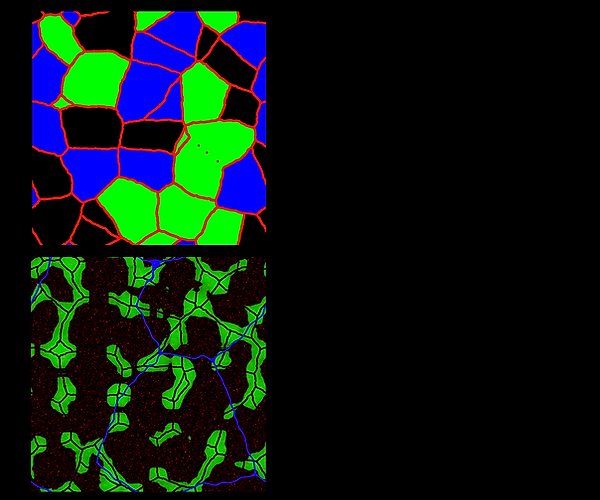
T_Landscape Mask_02
Red channel : Mudroad layer for roads
Green channel : Farmland1 layer for farmlands
Blue channel : Farmland2 layer for farmlands
T_Landscape Mask_01
Red channel : DryGrass layer to add variation to main landscape
Green channel : ForestGround Layer for PCG_Forest and generate Trees
Blue channel : Mudroad Layer to generate bigger roads
Water Material
To enable all water features, Generate Mesh Distance Field option should be enabled in Project Settings

Performance Tips

Foliage Performance Optimization
The following settings can help improve performance when using dense foliage and landscape grass in large environments.
1. Disable wind animation at far distances
Wind animation using World Position Offset can be expensive when applied to large amounts of foliage.
To optimize this, open your Landscape Grass Type asset and set:
Instance World Position Offset Disable Distance
This disables wind animation for distant foliage where the movement is no longer noticeable, reducing unnecessary vertex calculations.
2. Disable dynamic shadows for grass
Dynamic shadows on dense grass can have a significant performance cost.
Inside the Landscape Grass Type settings, disable:
Cast Dynamic Shadow
Grass usually does not require full dynamic shadows, and disabling them can greatly improve performance in large outdoor scenes.
3. Use Contact Shadows as a lightweight alternative
To maintain subtle shading after disabling dynamic shadows, contact shadows can be used as a lightweight solution.
Select your Directional Light and set:
Contact Shadow Length = 1
Contact shadows help create small local shadow details near objects, providing a convincing shading effect without the heavy cost of full dynamic shadows.
Result
By applying these optimizations:
-
Wind animation is disabled for distant foliage
-
Expensive dynamic shadows on grass are removed
-
Lightweight contact shadows preserve visual depth
These changes can significantly improve performance in foliage-heavy environments while maintaining a natural visual appearance.
Movie Render related questions
1. Disable Grass Flush Streaming in Game Overrides settings in Movie Render Queue
2. Increase start and end cull distances from Landscape Grass Type assets
Important Settings before Migrating package into your Project
Before adding this environment pack to your project, we recommend enabling the following Unreal Engine settings to ensure the environment renders correctly and performs as intended.
1. Enable Procedural Content Generation (PCG)
This environment pack uses Unreal Engine’s Procedural Content Generation system to scatter vegetation and environment assets.
Before using the PCG volumes in the demo scene, make sure the PCG plugin is enabled.
Steps
Go to:
Plugins → Search for Procedural Content Generation
Enable:
Procedural Content Generation Framework
2. Enable Nanite Support
Most meshes in this pack use Nanite geometry for higher detail and better performance.
Path
Project Settings → Rendering → Nanite
Enable:
Support Nanite
Restart the engine after enabling this option.
3. Enable Lumen Global Illumination
The lighting setup of the demo scene uses Lumen for global illumination and reflections.
Path
Project Settings → Rendering → Global Illumination
Set:
Dynamic Global Illumination Method → Lumen
Reflection Method → Lumen
4. Enable Generate Mesh Distance Fields
Some materials and ambient occlusion effects may rely on Mesh Distance Fields.
Path
Project Settings → Rendering
Enable:
Generate Mesh Distance Fields
Restart the engine after enabling this setting.
5. Enable Virtual Textures (Optional)
If you plan to use the environment with large landscapes, enabling virtual textures can improve performance.
Path
Project Settings → Rendering → Virtual Textures
Enable:
Virtual Texture Support
6. Enable Virtual Shadow Maps
This environment was designed to work with Virtual Shadow Maps, which provide more stable and detailed shadows for Nanite assets and foliage.
Path
Project Settings → Rendering → Shadows
Enable:
Virtual Shadow Maps
Thank you
